FS25 Radio Player V1.0.0.0
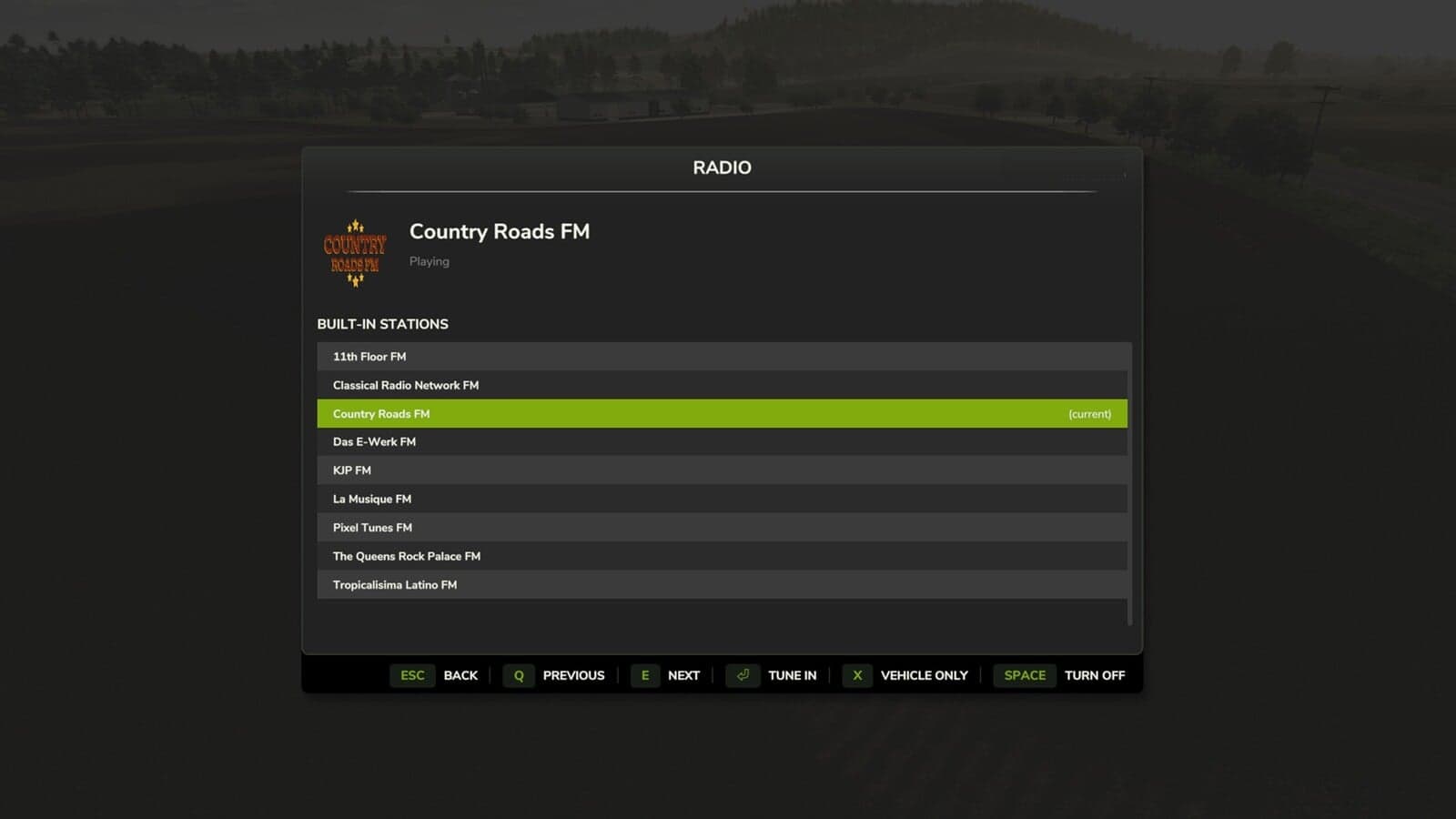
Radio Player provides a simple control panel for the radio in the game. It displays the station and song that are currently selected. You can move through the available stations, adjust the volume, or select a station directly.
Use Left Alt + 5 to open the panel. Its key is shown in the F1 help. You can change it in Options > Controls, and controller players can assign the action to a button there as well. The panel can be used both while walking and while driving vehicles.
Features
- The station currently being played, including its logo when it is one of the built-in stations
- The song currently playing, if the game supplies that information
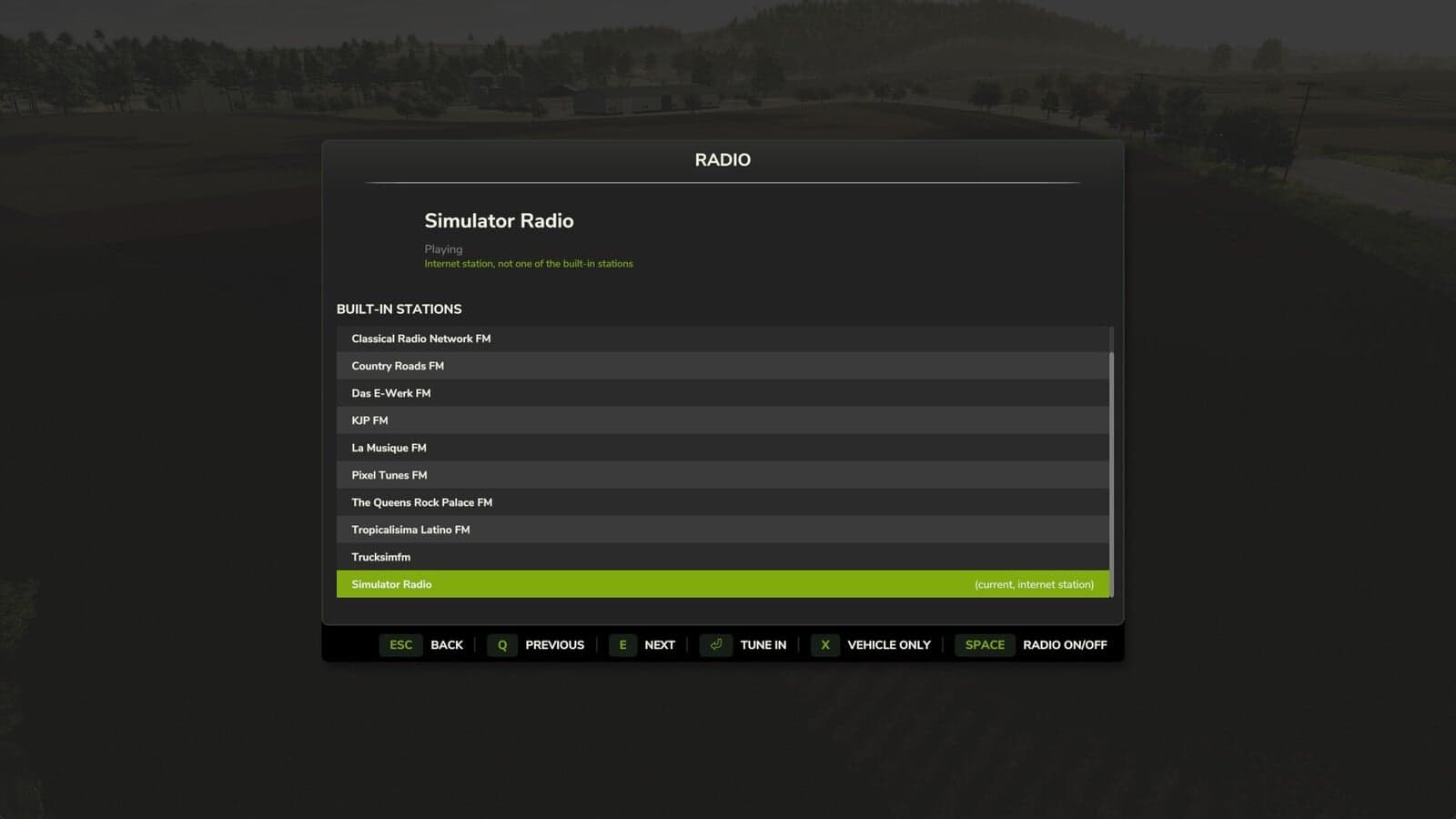
- All of the game’s built-in stations listed alphabetically, with the current station highlighted
- The radio’s state, whether it is playing, switched off, or configured for vehicles only
- Works in multiplayer. Every player controls their own radio; nothing is shared with other players.
- The game’s own radio keys continue to work normally and use the station order from the game.
Controls
- Previous / Next: move through every station. The built-in stations are listed first, from A to Z, followed by the other stations.
- Tune In, or double-click a station: select that station directly
- Volume – / +: adjust the radio volume with the mouse
- Play Everywhere / Vehicle Only: decide whether the radio also plays while on foot. This matches the game’s Radio setting.
- Radio On/Off: turn the radio on or off, just like using the game’s radio key
- Back: exit the panel
Mini player
Show or hide a small on-screen player with Left Alt + 6. It is similar to the AutoDrive and Courseplay HUDs. The mini player displays the station logo, station and song, and provides Previous, On/Off and Next buttons.
To use its buttons, display the mouse cursor through the game’s own cursor, with the middle mouse button while in vehicles, or with Left Alt + 7. Once the cursor is visible, you can drag the player to your preferred position. It remembers both whether it is visible and where it was placed.
Internet stations and your own music
Farming Simulator 25 includes internet radio stations in addition to the built-in stations. The game also plays music or stations that you add yourself. Information is available in ReadmeMusic.txt, located in the music folder of your game’s user folder.
Previous and Next also move through these stations, while the panel displays their names. Every station you listen to is placed in the list below the built-in stations and remembered for the next time, allowing you to return to it with Tune In.
Adding your own stations
Any internet radio station with a direct stream address can be added. In your game’s user folder, open Documents > My Games > FarmingSimulator2025 > music, then add one line per station to streamingInternetRadios.xml.
Addresses that end in .mp3, .aac, .m3u or .pls generally work best. Music apps that use their own player usually do not provide these addresses, although many stations provide them on their own website. The game’s ReadmeMusic.txt in the same folder also explains how to add your own music files. Restart the game after making the changes. Your stations will then be available on the radio and will appear in Radio Player by name.
Unreachable stations
Internet stations can sometimes be offline. When a station has not connected after 8 seconds, the panel displays “Station not responding”. Previous and Next then skip that station for the remainder of the game session.
The game may continue attempting the connection for a few more seconds. Because of this, changing stations can take a moment, and some offline stations may briefly pause the game while the connection is attempted. This behavior comes from the game’s radio, not from this mod.
Your station is saved with your game
Saving the game also saves the station you are listening to with that savegame. After loading the savegame again, the radio tunes back to that station as soon as playback begins.