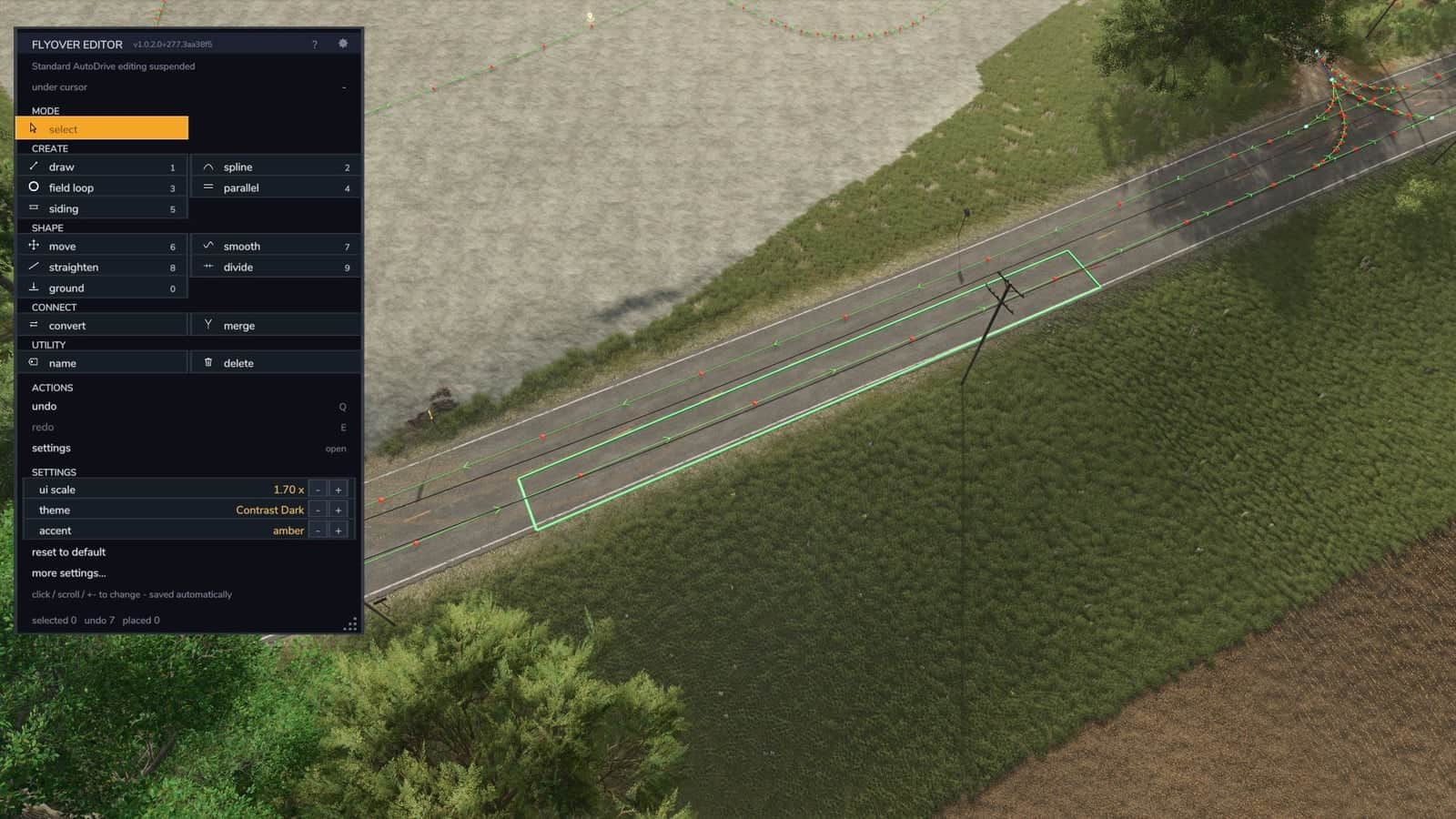
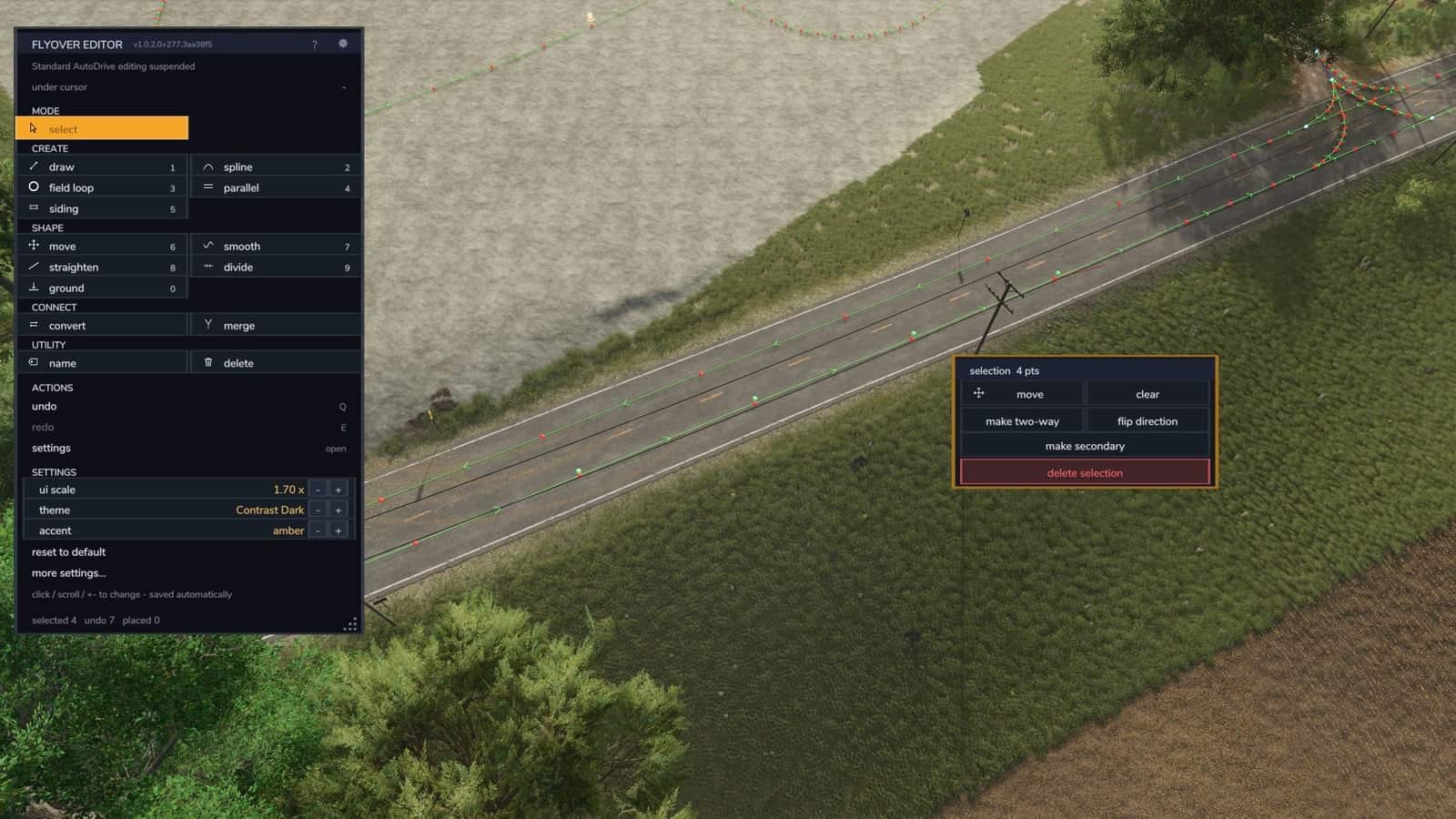
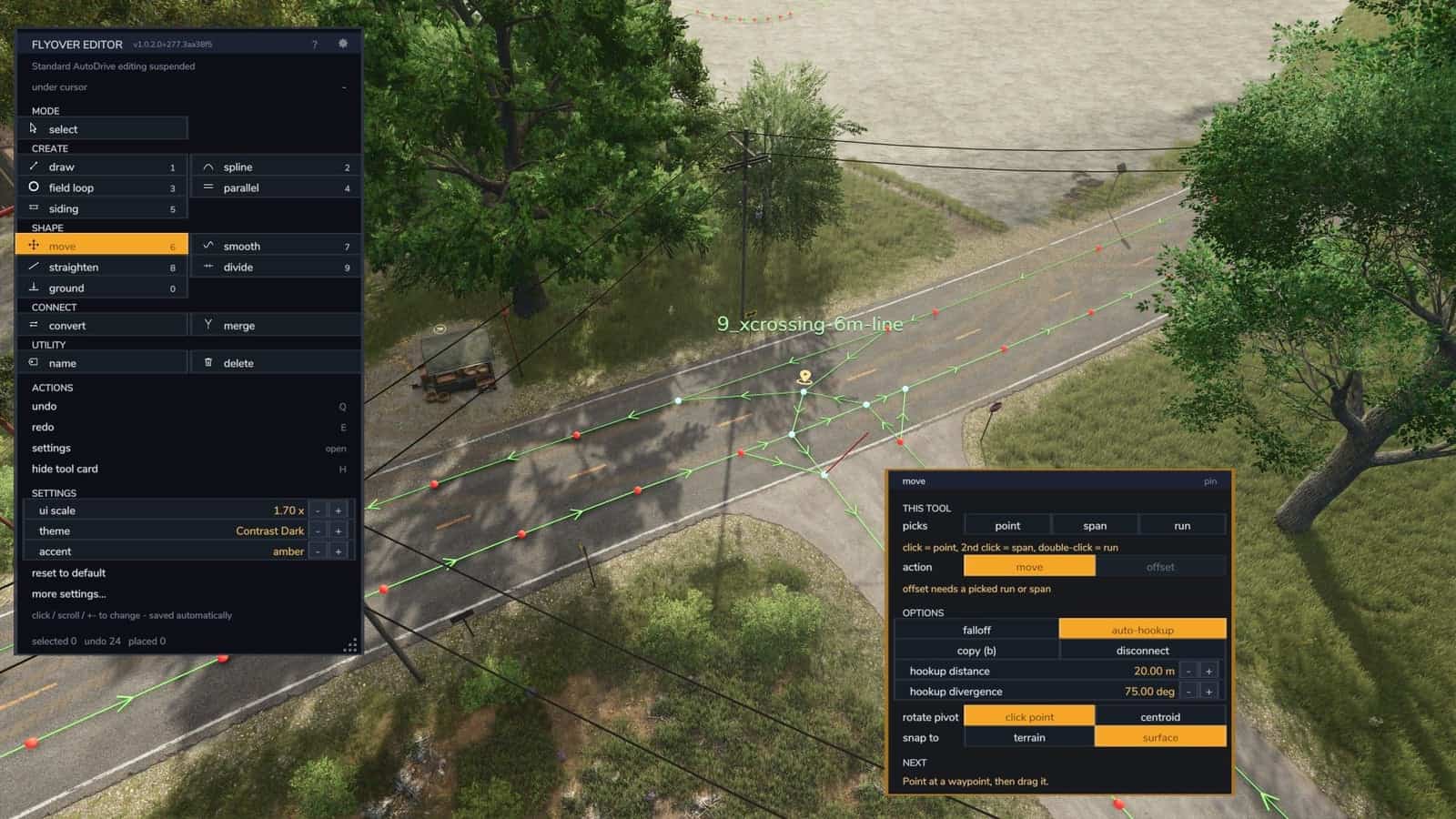
FS25 AutoDrive top-down flyover editor V1.0.3.4
Flyover Editor provides a top-down workspace for AutoDrive route networks in Farming Simulator 25. It operates beside the standard AutoDrive, leaving both AutoDrive’s files and your savegame’s config unchanged while using AutoDrive’s own network functions.
From above, you can create and repair networks either on foot or from a vehicle. Place waypoints, draw roads, curve connections, create parallel lanes, straighten or smooth routes, return points to the ground, and tidy up existing paths.
Features
- Because the camera can pass beneath roofs, points can be placed inside sheds.
- Height slice (G): looking directly downward, the camera conceals roofs and trees that are above your vehicle’s height.
- Points land on shed floors and concrete pads just above the terrain, not on the terrain under them. Every tool uses the same rule.
- Road runs: aim at a map road or farm track without an AutoDrive path, then click to create a run along it: one-way, two-way, or two lanes keeping right. Existing roads can also be reshaped through junctions.
- Spline: create a smooth curve through any number of points. Both ends connect to the road easily, while Edit placed reshapes an existing run.
- Junction tool (BETA): lock a road junction and use one right-click to remove its old turns, create new ones, or do both. Simple X and T junctions work well, as does a farm road joining a two-lane road. One undo reverses everything.
- The field loop remains in the field you selected, avoids fences, trees and the loop of the next field, and a smaller turning radius produces a tighter corner (issues 14 and 15).
- With Courseplay installed, a Courseplay custom field can define the boundary.
- A pylon or tree patch cut into a field no longer makes the loop leave the field and return to it (issue 31).
- Picks on a loop work: clicking beyond the far end moves the pick along the track.
- Smooth’s rebuild applies to the stretch you selected.
- Undo retains parking spots and the destinations of every vehicle (issues 24 and 26).
- When smoothing a road currently being driven on, the points still ahead remain until the vehicle has passed them.
- Left Alt + V opens the editor as well as Left Alt + F, and both keep working in a vehicle.
- Panels no longer appear through one another, and the settings page fits every ui scale (issue 28).
- If the game stops passing the mouse wheel to the editor’s zoom, the editor takes zoom input directly from the wheel (issue 18).
- Plan while viewing the real fields, junctions and yards to see the complete picture.
- Repair routes without recording them again: straighten a wobbly pass, smooth a jumpy lane, put floating points back in place, or remove a dead end.
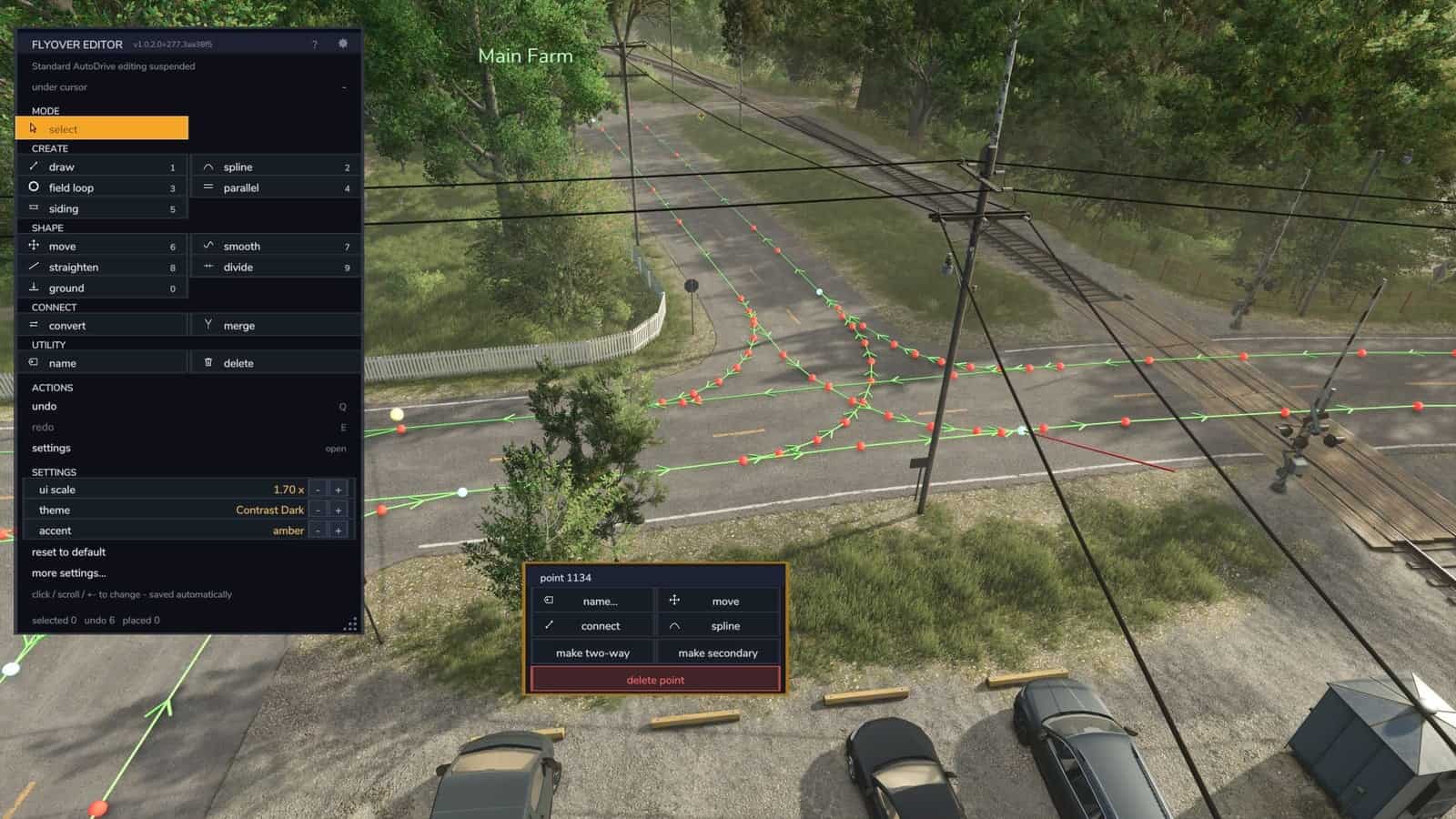
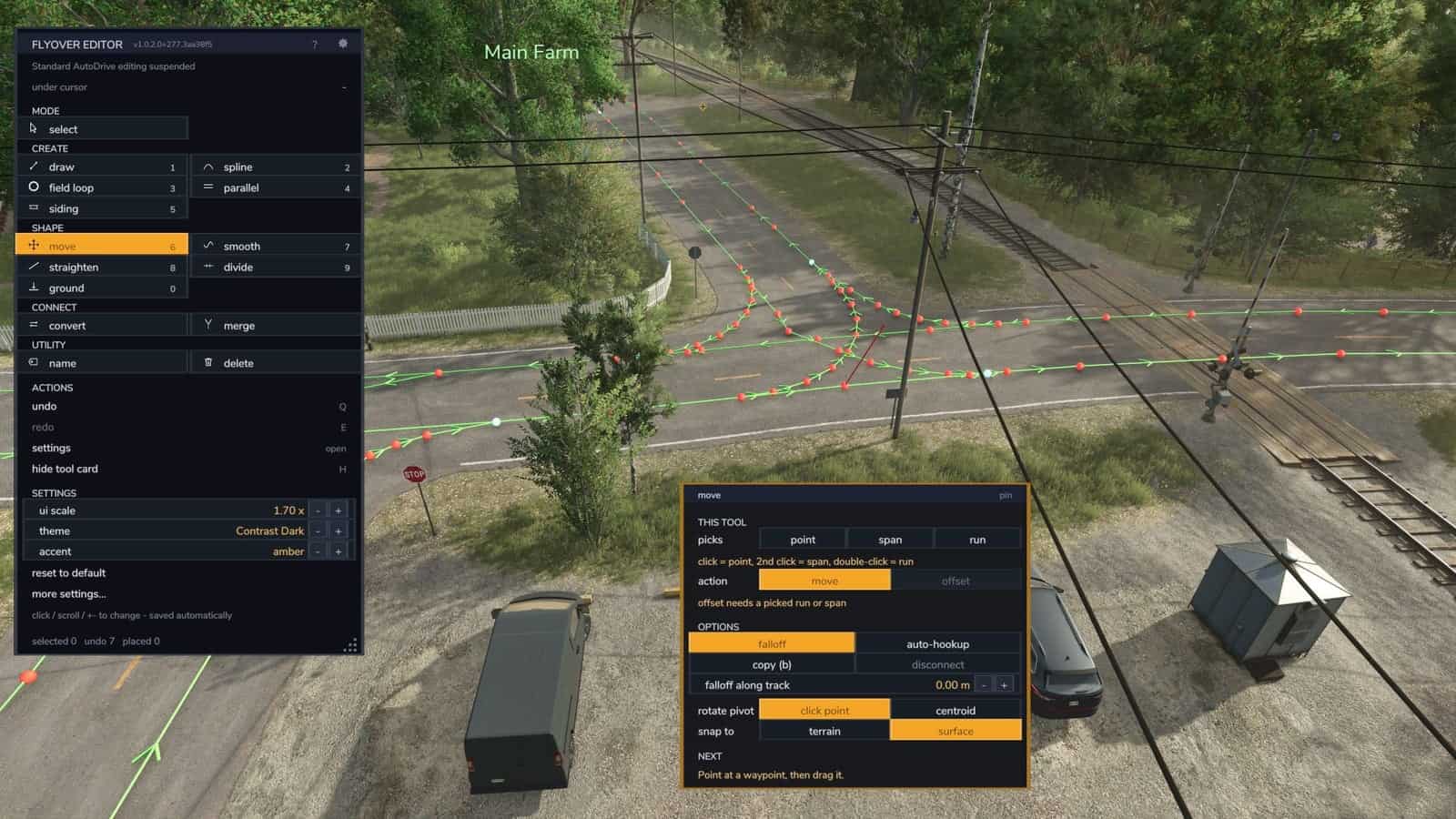
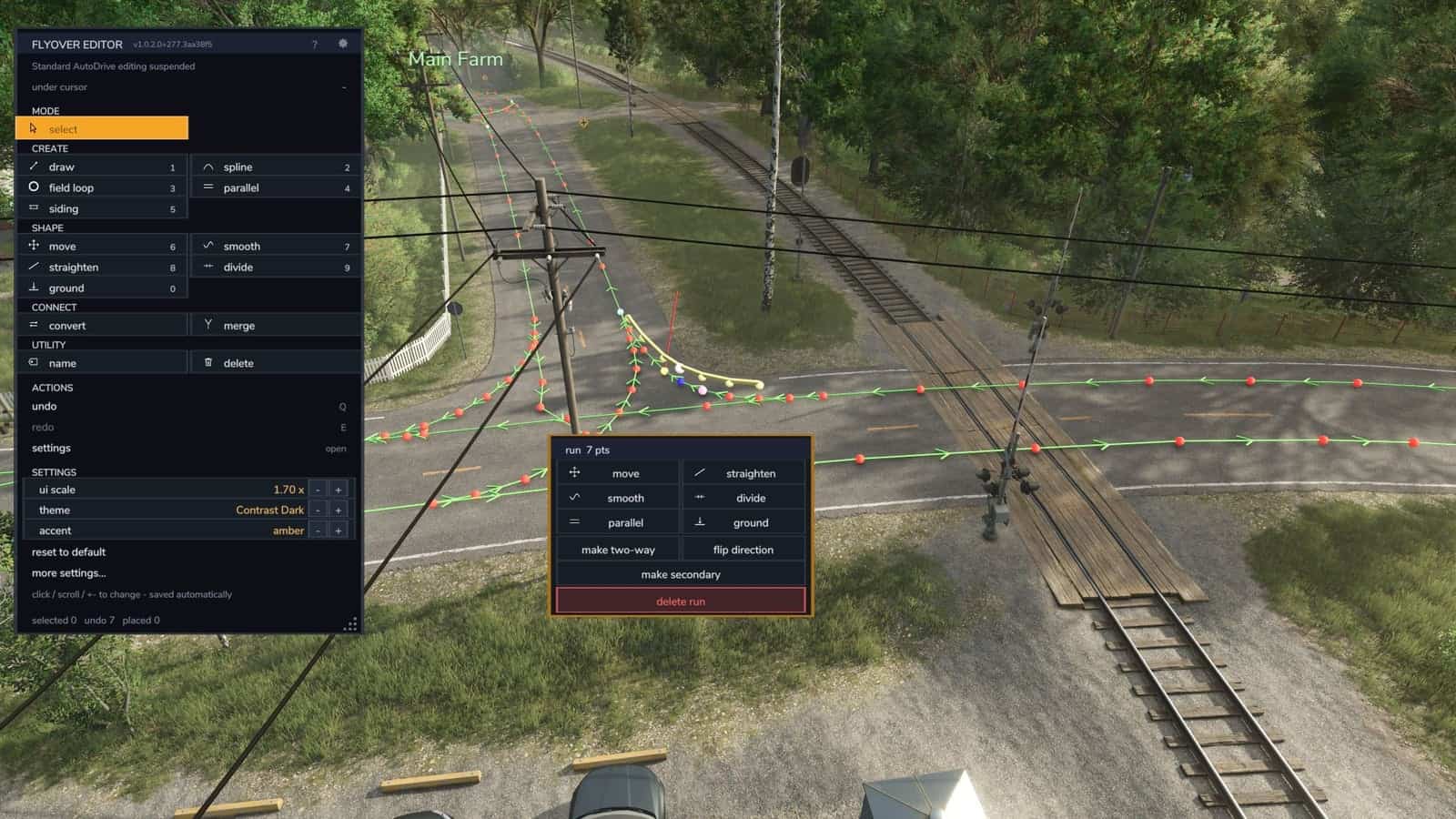
- A panel shows all tools, each tool comes with a card for its options, and a hint line indicates the next step.
- All edits support undo (Q) and redo (E).
Opening and controls
- Use Left Alt + V or Left Alt + F, remap them in the controls menu, or press the button beside AutoDrive’s HUD. Press Esc to leave.
- Choose tools with 1-9 and 0. Q undoes and E redoes. H hides the tool card, while G switches the height slice on or off.
Tools
Select is the starting mode: with no tool held, click objects to edit them.
Create
- Draw: add waypoints one click at a time, with each one connected to the previous point. Select one-way or two-way, primary or secondary.
- Spline: make a smooth curve through the points you click. Ending on a waypoint connects it to the road.
- Field loop: create a two-way loop just beyond a field edge, rounded according to a turning radius and kept away from obstacles. Connect it afterwards.
- Parallel: duplicate a span or run sideways to make a passing lane or a return leg.
- Siding: create a short parallel section that curves back in at either end.
- Road runs: create runs along the map’s own roads, or reshape roads that have already been built.
Shape
- Move: drag a point, span, run or selection. Falloff bends part of a route smoothly; its card also contains copy, disconnect, offset, rotate and auto-hookup.
- Smooth: remove small kinks from a stretch, or rebuild that stretch with even spacing.
- Straighten: remove points close to a straight line while retaining genuine corners and junctions.
- Divide: place evenly spaced waypoints along a span or run.
- Ground: return floating or buried points to the surface, including points on shed floors and bridge decks.
Connect
- Convert: assign direction, two-way, one-way, other way, reverse, and priority to a point or an entire run.
- Merge: combine two parallel lanes into one shared track.
- Junction (BETA): remove and recreate the turns at a road junction with one right-click.
Utility
- Name: give a waypoint a name so AutoDrive treats it as a destination.
- Delete: remove one point, the complete run between junctions, or a selection.
Select mode
Click a point to open its menu. Click another point to select the span between them, or double-click to select the complete run between junctions. A box, circle or freehand shape can select a set, as can Ctrl-click. Choosing a tool from a menu opens its card at that location.
Look and help
- Tool cards contain toggles, choices and numbers that can be typed, scrolled or stepped through. Options that cannot currently apply are greyed out.
- UI scale from 0.70x to 2.00x, 7 colour presets, 7 accent colours and a colour editor.
FlyoverResetThemeputs it all back to default. - Press the ? button, or use /, to display help for the tool you are holding and open the complete in-game manual.
- English and Deutsch are complete. Brazilian Portuguese is available as a first draft; native speakers are welcome to help.
Compatibility
- Uses only AutoDrive’s own functions. AutoDrive’s files are not changed.
- Its settings live in modSettings and never touch AutoDrive’s config or your savegame.
- Single player only.
- Requires
FS25_AutoDrive, tested with 3.0.1.4. Do not run it next to a changed AutoDrive build that has its own flyover editor built in.
Installation
Place FS25_ADFlyoverEditor.zip in the FS25 mods folder, then enable it alongside FS25_AutoDrive.
Feedback, bugs and ideas: Discord or GitHub https://github.com/huskermcdoogle/FS25_ADFlyoverEditor/issues
YOU NEED: Autodrive
Changelog
- V1.0.3.4
https://github.com/huskermcdoogle/FS25_ADFlyoverEditor/blob/main/CHANGELOG.md - V1.0.3.3
https://github.com/huskermcdoogle/FS25_ADFlyoverEditor/blob/main/CHANGELOG.md - V1.0.2.1
A quick update brings a few bug/accessibility fixes and backend hygene around the new field loop function in the Autodrive 3.0.1.4 release that just came out. https://github.com/huskermcdoogle/FS25_ADFlyoverEditor/releases/tag/v1.0.2.1