FS25 Tramline Pilot V1.2.0.2
Tramline Pilot lays out tramlines across every field, displays them on the ground, and makes the worker drive, turn, spray or spread only along those lines. The mod uses Control Traffic Farming, saves the same tramlines for later seasons, replaces Precision Farming tramlines without Precision Farming being required, and works with AutoDrive for refilling.
Place FS25_TramlineSystem.zip in Documents/My Games/FarmingSimulator2025/mods. When loading your savegame, activate Tramline Pilot in the mod list.
Features
- Every field can receive planned tramlines, keeping vehicles off the crops.
- For refilling, the worker follows the tramlines around the field before leaving and entering again.
- The tramlines are saved for use from one year to the next.
- AutoDrive can be used for refilling.
- At worker turns, either the headland tramline or suitable loops can be used.
- For self-propelled and mounted sprayers, headland corners may be rounded or handled by backing into the corners.
- The headland can be sprayed first, sprayed last, or left out.
- In the crop, tramlines may be made as wheel tracks or as one full lane.
- Display lines for the current field, for every field, or for no field.
- Precision Farming tramlines may be enabled, disabled on tramline fields, or disabled everywhere.
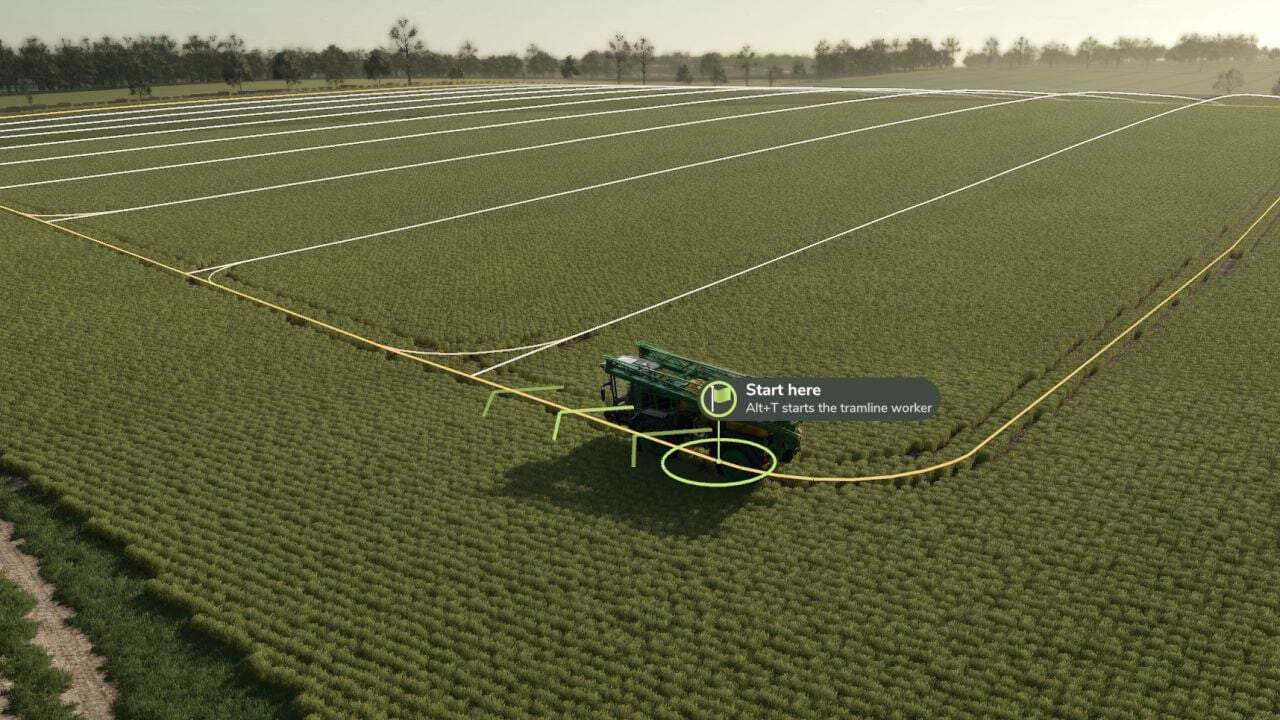
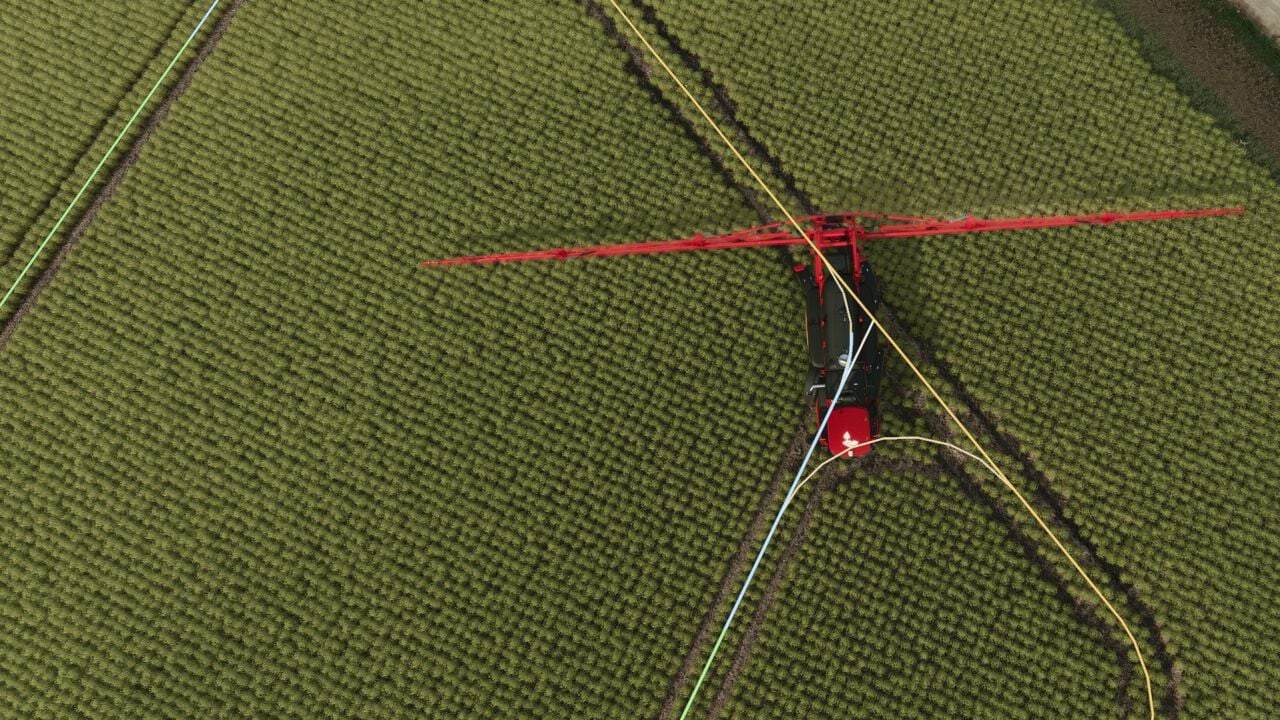
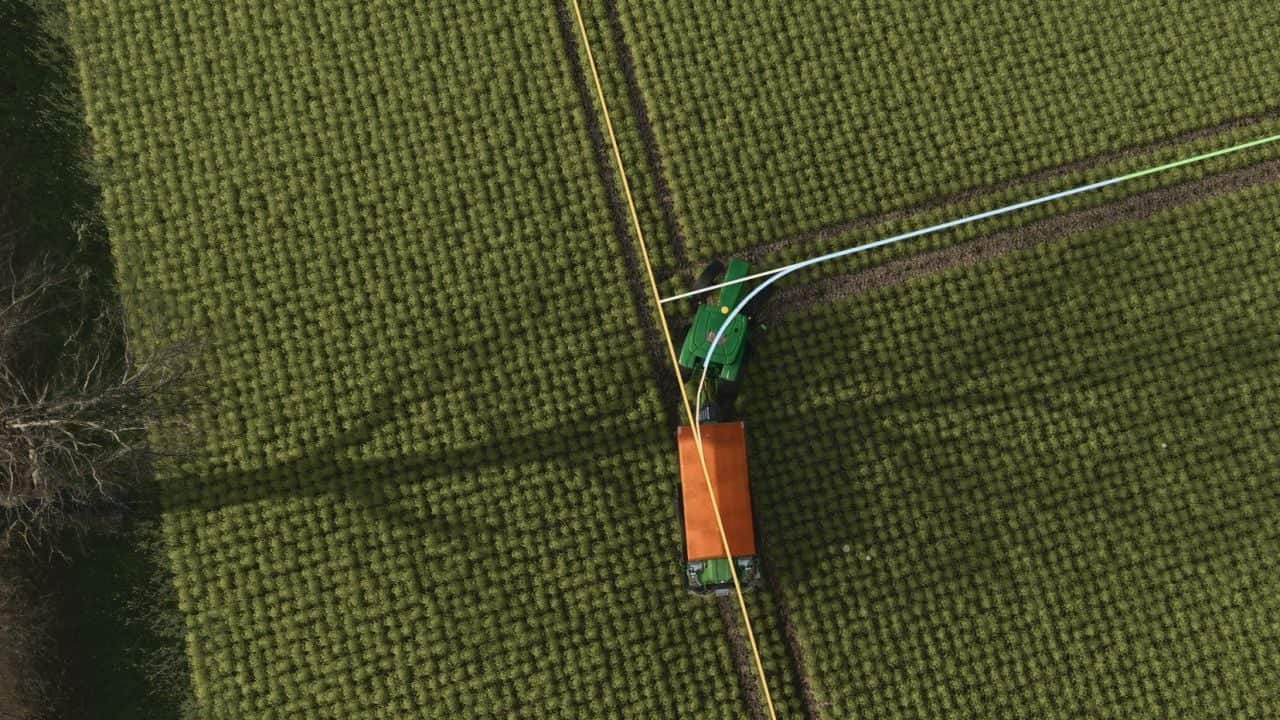
- Main tramlines appear white, while headland tramlines appear amber.
- The next spraying route is shown in green; blue indicates driving with the boom switched off.
- The course beginning is marked with a green flag and its end with a chequered flag.
- Last sprayed here identifies the position where an unfinished job ended.
- The field gate identifies where AutoDrive takes control for refilling.
- With Back into corners enabled, the sprayer reverses into sharp headland corners so that none are skipped. Trailed sprayers are excluded.
- Saving keeps an unfinished job, allowing it to be continued another day.
- Saved wheelings are available in every savegame on the same map.
Specifications
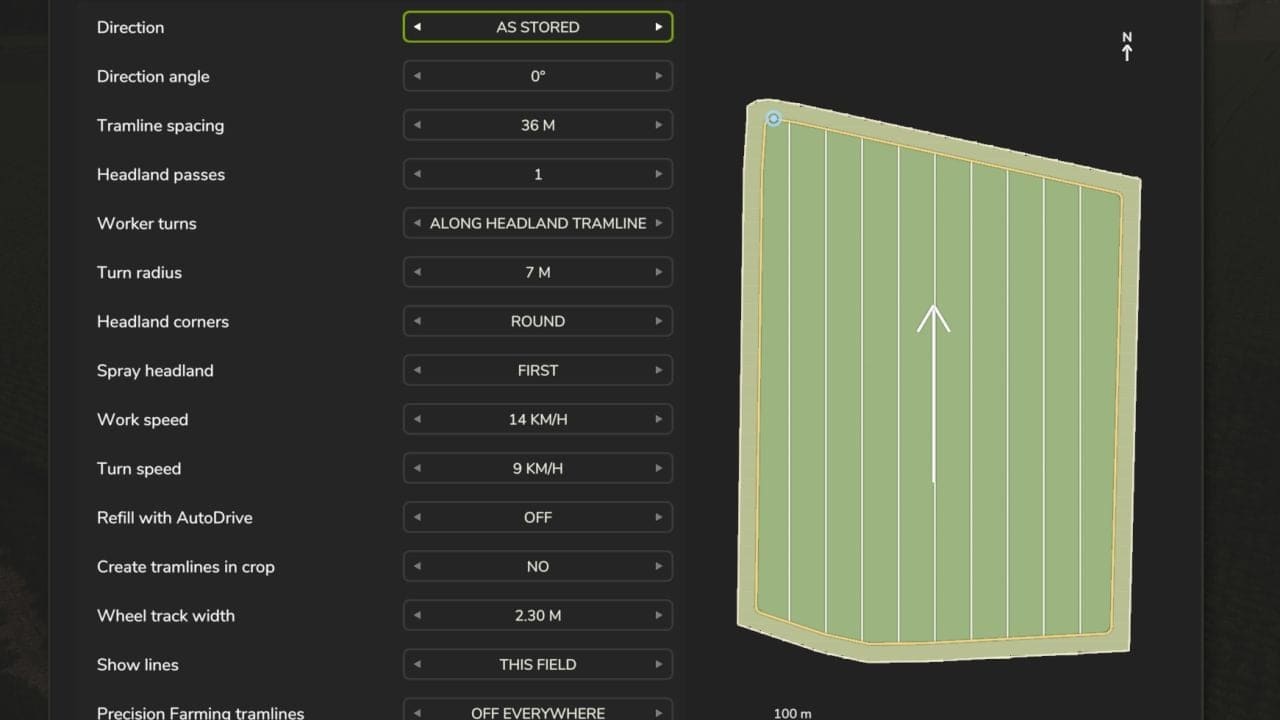
- Tramline spacing is your boom width or spreading width, from 6-60 m.
- Headland passes: 0-4 tramlines around the edge of the field.
- Turn radius: the turning circle of your sprayer, 4-15 m.
- Wheel track width is the distance between the sprayer’s wheel centres, 1.50-4.00 m. The machine width where you are sitting is marked “your vehicle”. 2m is a good start.
- Work speed and Turn speed apply to spraying and turning.
- For Create tramlines in crop, select no, wheel tracks or a full lane.
- Wheel tracks consist of two tracks 2 m apart.
- Full lane: 3 m.
- Soil strip: 6-30 m.
Setup
- On the field, press Right Ctrl+M.
- Choose your boom width or spreading width for Tramline spacing.
- Select a Direction and the amount of Headland passes.
- Press Enter to create the tramlines.
- Fill the sprayer and move onto the amber headland tramline.
- Once the green Start here flag appears, press Alt+T.
- Use Alt+T or Alt+Q to stop.
Setting up a field:
- Direction options are longest edge, vehicle heading, A – B points, Alt+1 and Alt+2, an angle, or as stored.
- Enter generates, Space opens Saved wheelings, Clear field removes the layout, and Esc returns.
Seeing your tramlines
- Alt+4 toggles the lines on and off.
- White indicates main tramlines, and amber indicates headland tramlines.
- Green marks where the worker sprays next, while blue marks driving with the boom off.
- The green flag marks the course start and the chequered flag marks its finish.
- Last sprayed here shows where an unfinished job stopped.
- Field gate shows where AutoDrive takes over for refilling.
Spraying with the AI worker
- Place the vehicle on a tramline. Use the headland tramline for a new job, or a main tramline to begin there.
- Press Alt+T. The worker sprays the field without leaving the tramlines.
- Press Alt+T or Alt+Q to stop, with Alt+Q also available outside the vehicle.
- Press Alt+T again to continue. At the stopping position, the worker carries on. From another position, select Drive back there, Carry on from here or New job.
Refilling with AutoDrive
Complete this setup once for every field:
- Place an AutoDrive marker at the field edge and name it the field gate.
- Make that marker the sprayer’s AutoDrive target.
- Make the refill point the sprayer’s 2nd target.
- Set Refill with AutoDrive to On in the menu.
When the tank is empty:
- The worker folds the equipment and follows the tramlines to the gate.
- AutoDrive takes the sprayer to the refill point and returns it.
- The worker goes back to the position where it ran empty and continues.
If AutoDrive stops during the route, start AutoDrive once more or press Alt+T while on the field.
Saved wheelings
- Pressing Generate saves each layout.
- In the next season, open the field menu and press Space, Saved wheelings.
- Select the required layout and press Generate.
Tramlines in the crop and Precision Farming
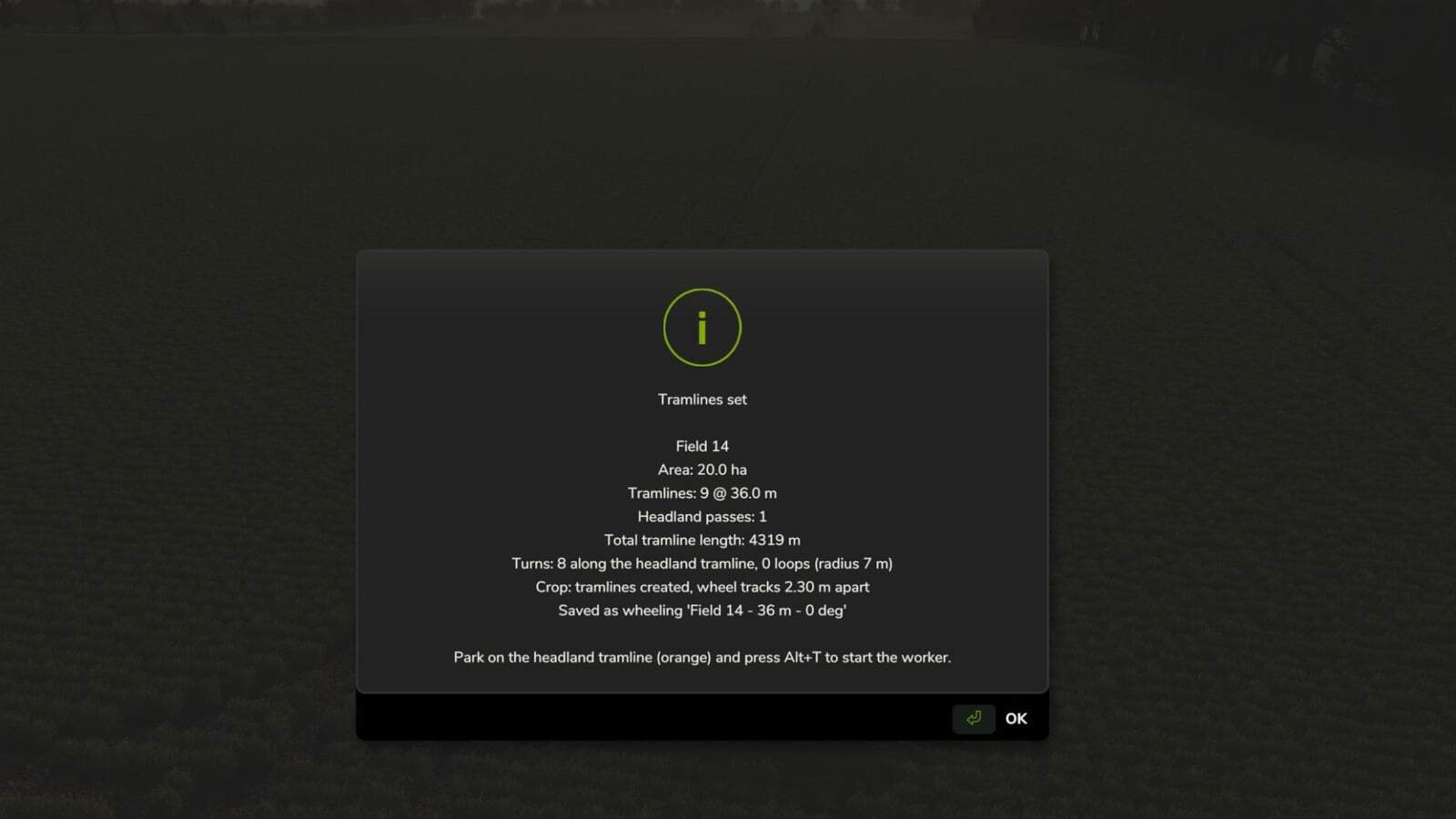
- For Create tramlines in crop, select Wheel tracks, two tracks 2 m apart, or Full lane, 3 m, and press Generate. The crop is immediately removed along the tramlines.
- For Precision Farming tramlines, select Off on tramline fields or Off everywhere, preventing Precision Farming’s seeders from creating their own tramlines.
Keys
- Right Ctrl+M: setup menu
- Alt+T: start or stop the worker
- Alt+Q: stop the worker
- Alt+4: show or hide the lines
- Alt+1 / Alt+2: set points A and B
- Handy console commands:
tlNewJobforgets an unfinished job,tlRefillrefills now,tlPaintcreates the tramlines in the crop, andtlWheelings/tlLoad/tlSavehandle saved wheelings.
If something goes wrong
- “Drive onto the headland tramline”: you are not on a tramline; move to the amber marker.
- It won’t back into corners: a self-propelled or mounted sprayer, a headland pass and Back into corners are required.
- Refill doesn’t start: confirm that the AutoDrive target is a marker at the field edge and that the 2nd target is the refill point.
- The unfinished job has gone: generating a different layout removes it.
- No lines: press Alt+4.
- It can’t follow the corners: set Turn radius to the turning circle of your sprayer.
- Gaps in the wheel tracks: press Generate again while Create tramlines in crop is set to Wheel tracks.
Issues:
Changelog
- V1.2.0.2
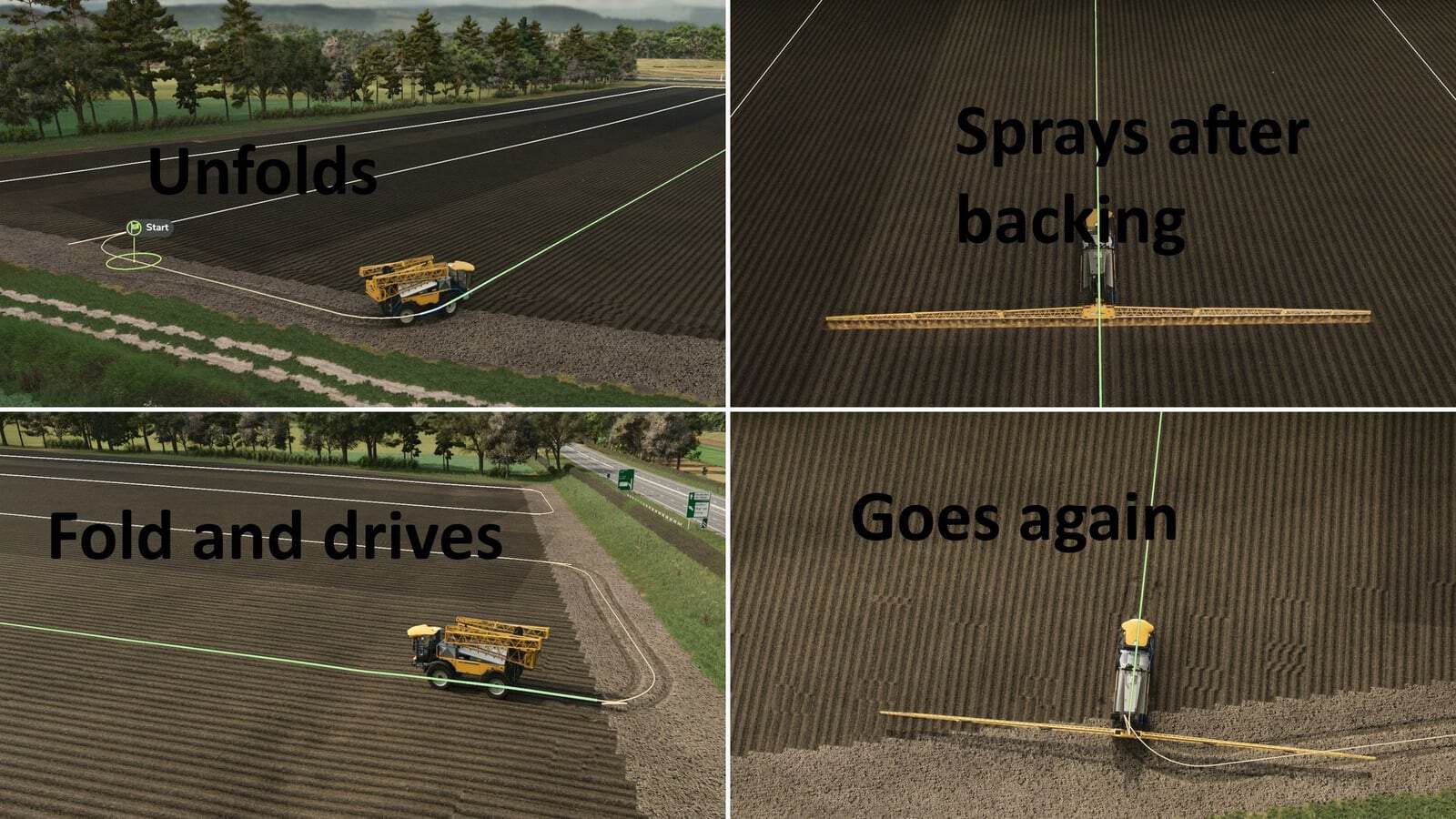
New since 1.1.0.0: a new feature is available for crops grown to the end of the field, potatoes and onions. Select Headland as Soil strip, 6-30 m, to use a field without a headland tramline. Tramlines finish at the strip. The worker sprays until the complete boom is beyond the crop, folds, turns on the bare soil with a three-point turn where space is tight, unfolds in the following tramline and backs onto the strip to spray from the very end.Soil strip turns are calculated for your machine, including its length, the position of its boom and whether it can reverse. Trailed sprayers only turn forwards and therefore require a wider strip.
Create tramlines in crop also removes the crop from the soil strip.
Joined fields: fields joined by ploughing or cultivating the land between them are treated as one field, with one headland around the complete area. This applies to land owned by your farm.
Fixes: Work speed and turn speed are now stored separately for each field. Previously, changing them on one field changed them on every field, GitHub issue #2. On fields with stepped or jagged edges, such as maps painting field ground in 2 m squares, the headland no longer crosses itself or divides into loops. This also fixes the headland breaking at some tramline spacings, GitHub issue #2. The headland no longer divides into two around a strip where a hedge or wall between two former fields has been removed. Strips up to about 8 m wide are planned straight across when nothing stands in them. On a field without a headland tramline, a worker starting in the first tramline now departs from that tramline.
Other: AutoDrive refills require a headland tramline, so they are disabled on soil strip fields. The version number is now 1.2.0.2. Full notes for each version are in
CHANGELOG.mdon GitHub. - V1.1.0.0
New: Headland direction is a new setup menu option and requires at least one headland pass. Select As the vehicle faces, Clockwise or Anticlockwise. With Clockwise or Anticlockwise selected, the worker always travels around the headland in that direction. It leaves the headland for the tramlines and returns to the headland at the end, using one curve rather than two. The tramlines still run up and down, with the turn direction changing between the two ends. With Back into corners, the worker reverses into every corner from the same side, meaning each corner needs one corner tramline instead of two. If it faces the wrong way, the worker does not start: the start marker displays “Turn round” and the direction in which the field runs. Saved wheelings retain the direction.Fixes: Tramlines created in the crop no longer change into another crop. On maps with extra crops, they appeared as the final crop in the list, onion, for example, on the crop map, GitHub issue #1.
Other: The version number is now 1.1.0.0. The Changelog, README and tutorial on GitHub were updated for the headland direction.
- V1.0.0.1
Fixed: Stopping course
Added: user logging