
FS25 Weather Wardrobe V1.0.0.0
Weather Wardrobe automatically chooses clothing for the Player, Workers and Employees according to the weather, temperature and season settings.
Features
-
Weather Wardrobe
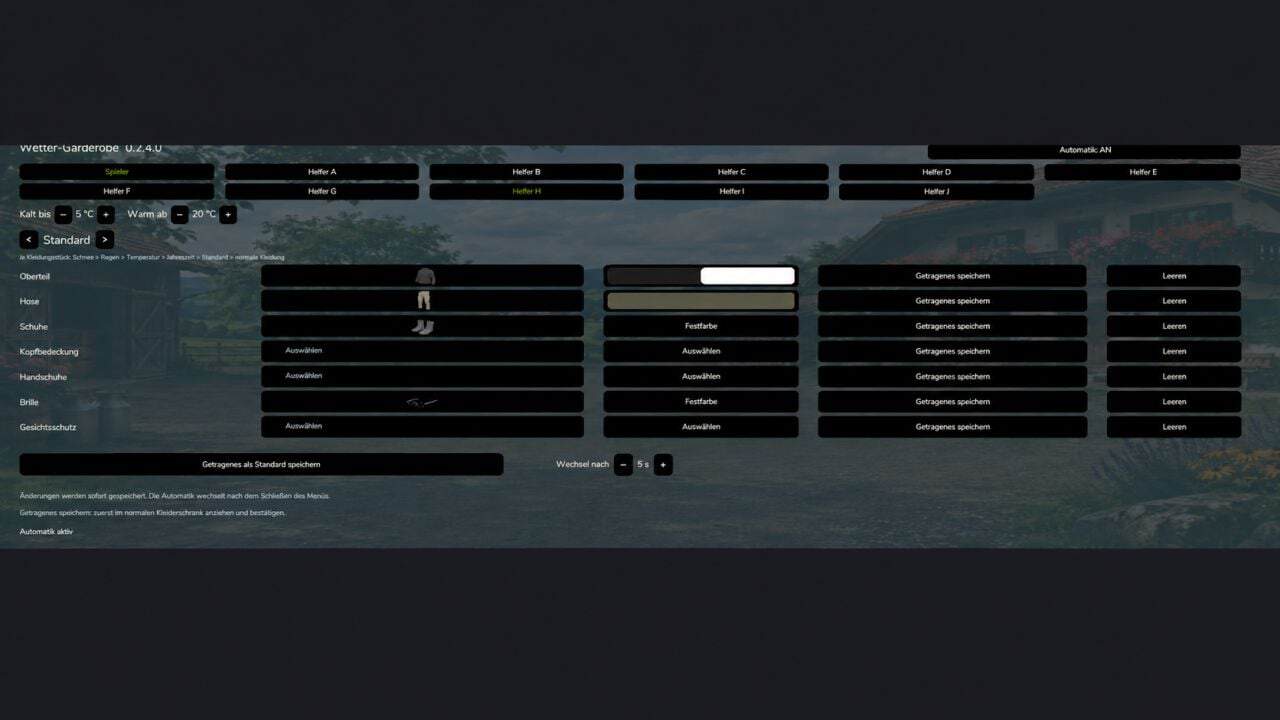
Enter the wardrobe and open the Weather Wardrobe tab.
Use the selector at the top to choose Player or a Worker.
Turn on automation for the selected person.
Define the temperature values that count as cold or warm.
Choose a preset, for example Rain, Winter or Warm, then set its clothing and colors.
All changes are saved automatically. Close the menu, then allow the period specified under “Change after” to pass.
-
Good to know
- Clothing items without an assignment are taken from the other suitable presets.
- If presets overlap, the priority is: Snow → Rain → Temperature → Season → Default.
- “Save worn clothing as default” copies the clothing and colors currently worn into the Default preset.
- The Player preset “Riding” prioritizes the selected items while on horseback. Once dismounted, the weather clothing is used again.
-
With PlayerWorkers
PlayerWorkers takes the player’s current clothing and applies it to the workers. For that reason, separate worker presets are not used. While PlayerWorkers is active, the Worker and Employee buttons open the player configuration.
If no visible change occurs, check the outfit your player is wearing first: Is automation enabled, is an appropriate preset configured, and is the required weather condition present?
Multiplayer: PlayerWorkers copies each local player. Consequently, the same worker can have a different appearance for different players.
- 1. Activate Weather Wardrobe and PlayerWorkers in the savegame.
- 2. Go to the Weather Wardrobe tab in the wardrobe.
- 3. Choose Player, activate their automation, and configure clothing, colors and weather thresholds.
- 4. Close the menu and wait until the configured change time has passed.
-
With Employees
Clothing may be configured before work starts. Once the employee is assigned as a driver, the appropriate outfit is used.
Good to know
- 1. Activate Weather Wardrobe and Employees in the savegame.
- 2. Configure your employees as usual through Employees.
- 3. Open the Weather Wardrobe tab in the wardrobe.
- 4. Choose an employee with the button showing their name, for example “Robin (A)”.
- 5. Activate their automation and configure the presets, colors, temperature thresholds and change time.
- Presets are assigned to the selected worker slot. Renaming or replacing the worker does not remove their settings.
- Employees continues to manage tasks, contracts, wages and working hours.
- In multiplayer, worker presets are synchronized within the relevant farm. Every participant needs the same Weather Wardrobe version.
- When PlayerWorkers is active as well, employees also use the player’s clothing. Their own employee presets are then not used.
Changelog
- V1.0.0.0
– Adjusted for the “Mitarbeiter” mod. - BETA 4
– NEW DESCRIPTION!!!! READ!
– Fixed bugs affecting the PlayerWorker-Mod & Employee-Mod.
– Adjusted the UI for improved clarity.
– Added the “Tab” preset. - BETA 3
Adapted the mod for:
– Player Workers.
– Employees.
– Additional minor bug fixes.
I have not tested the integration myself yet. Please let me know if you encounter any errors. It should work so far.