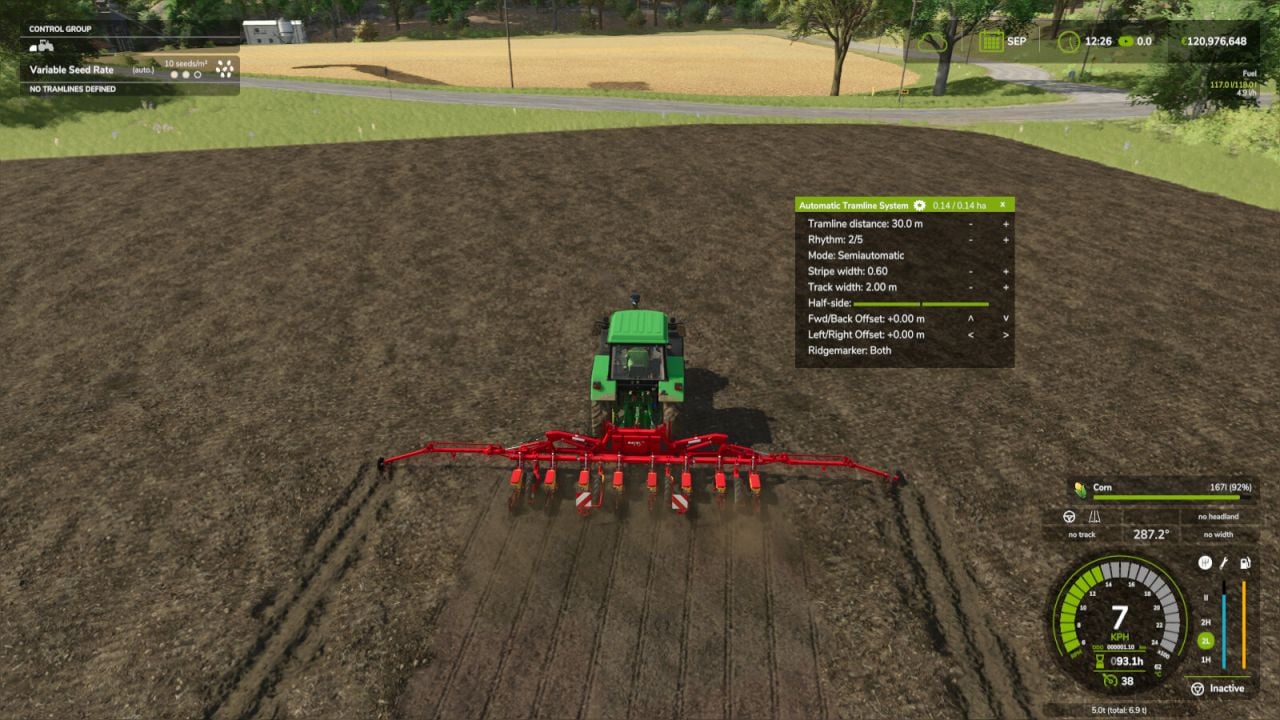
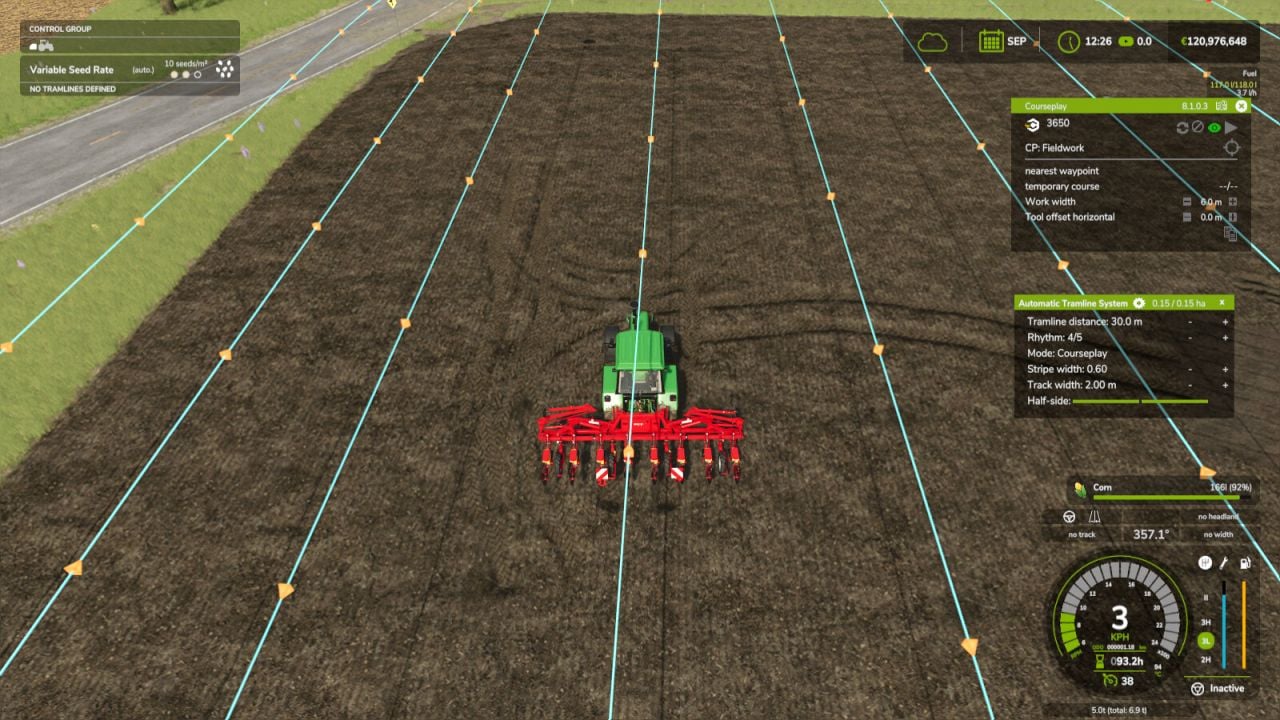
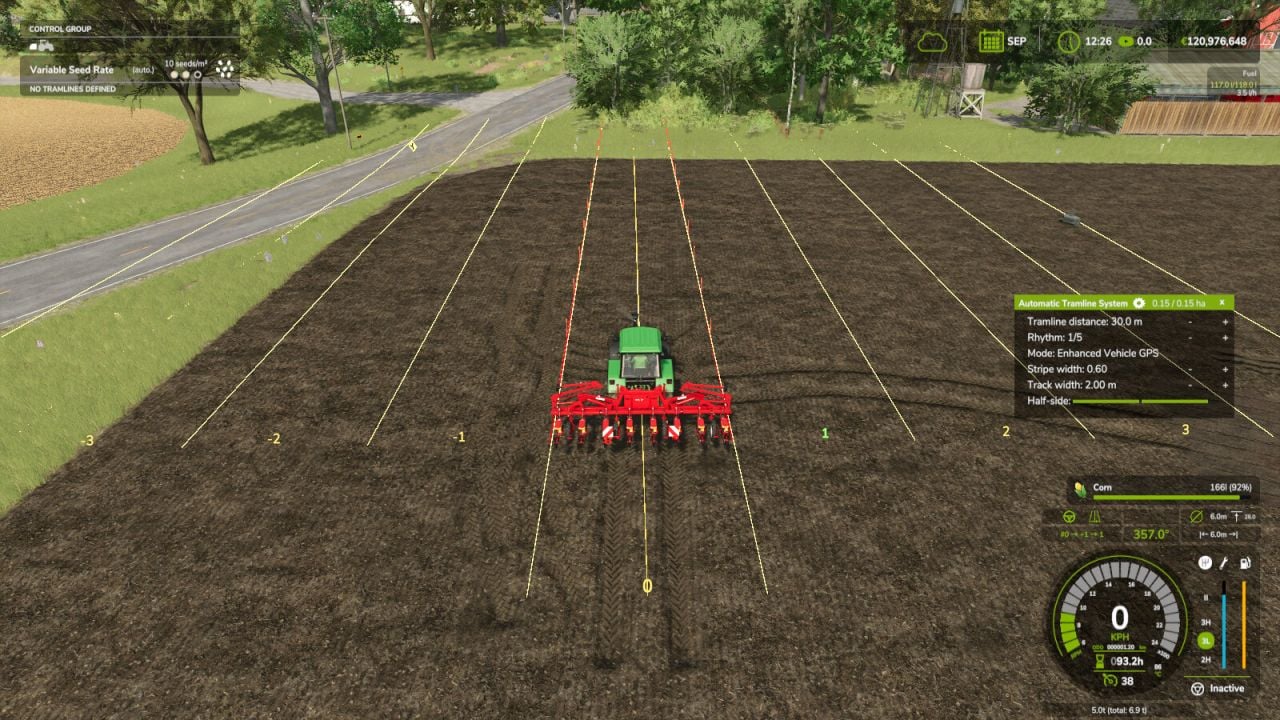
FS25 Automatic Tramline System V1.7.0.0
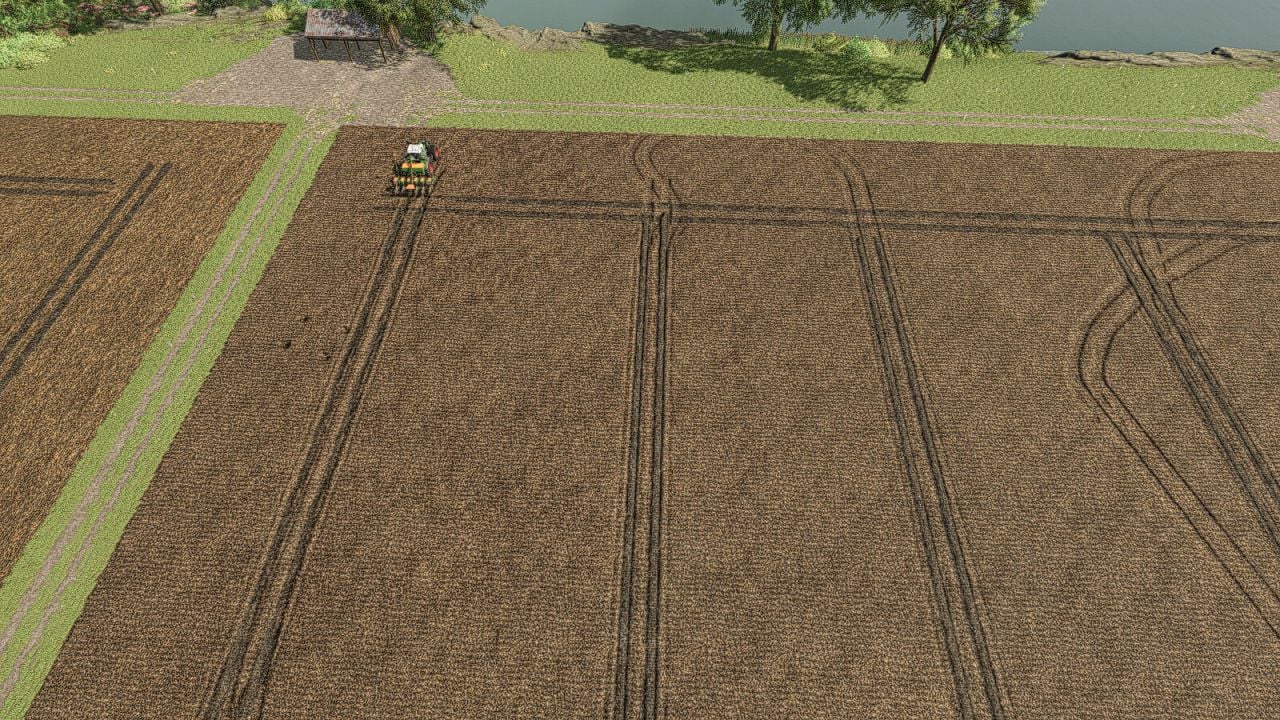
Tramline Automation for FS25 is my first script mod for FS25. Because the tramlines from Precision Farming did not always work as I wanted, this script automatically integrates them into every implement that can be used as a seeder.
The HUD is mouse-controlled. To use it, activate the mouse through an assigned key.
Features
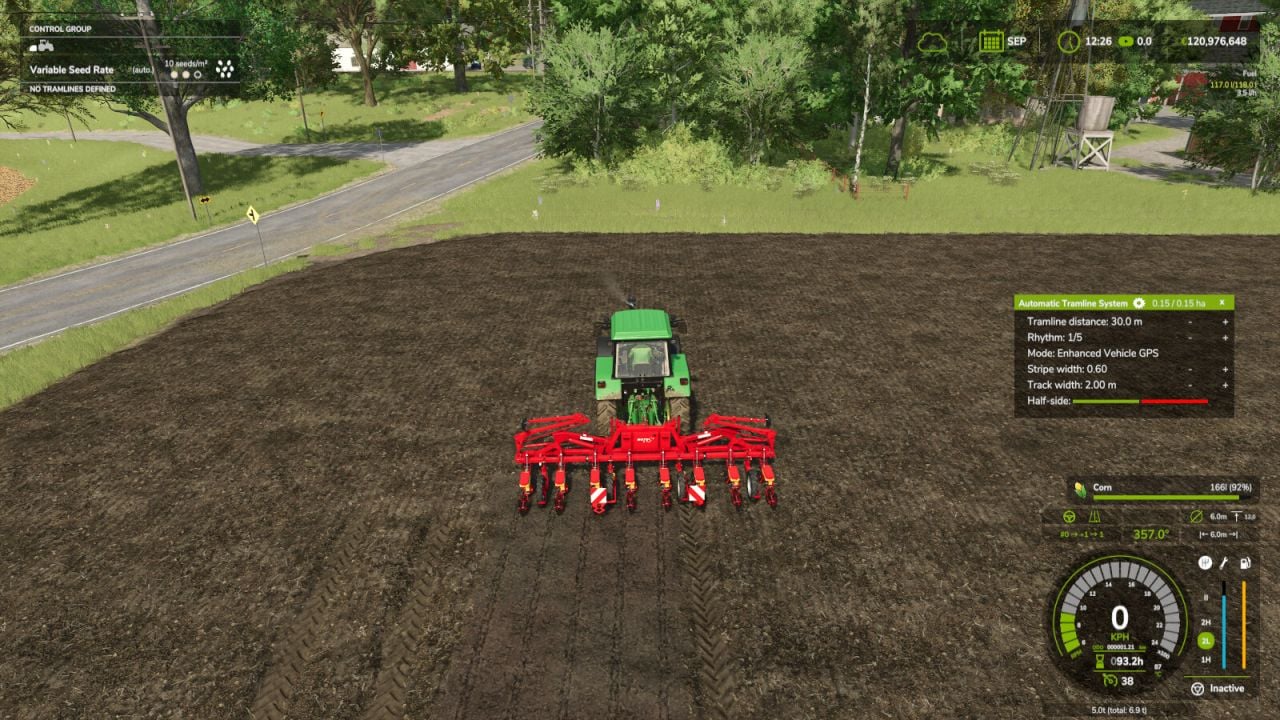
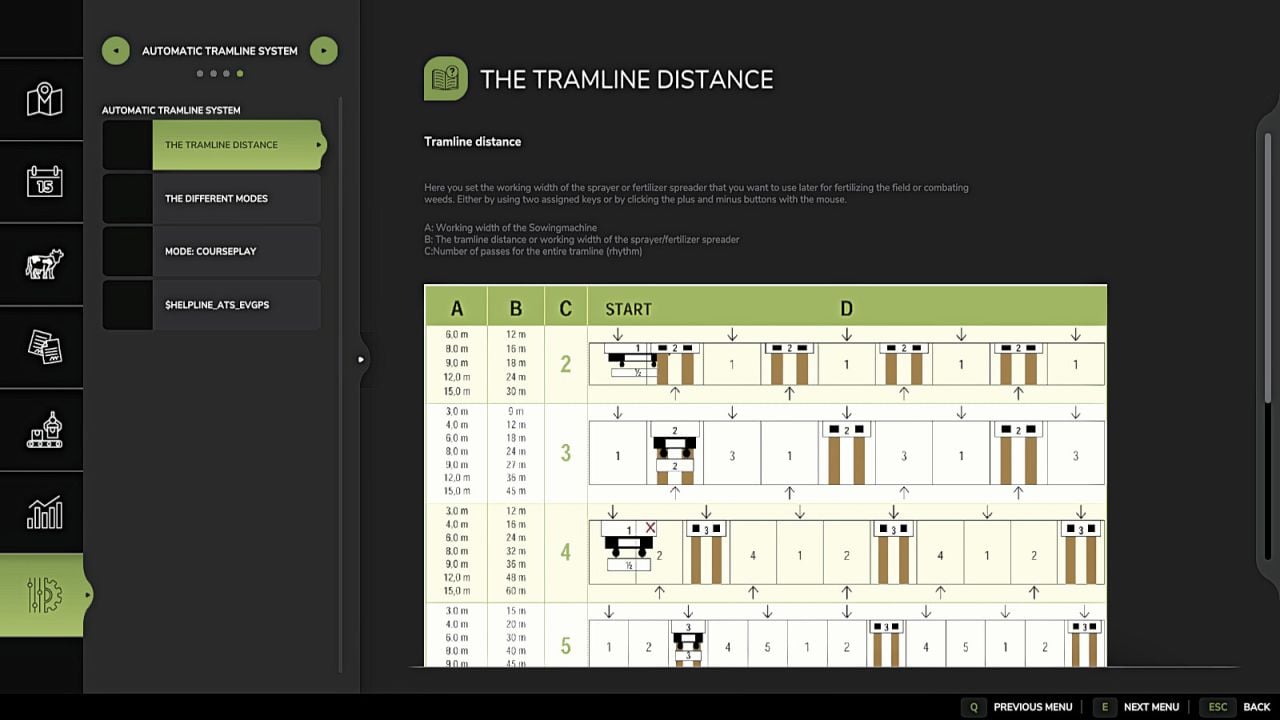
- Set Tramline Distance: Enter the working width of the sprayer or fertilizer spreader. You can change it with two assigned keys, or click the plus and minus buttons with the mouse.
- Rhythm: The number of passes needed for one working width of the sprayer or fertilizer spreader is shown here. In Semiautomatic mode, the current pass can be corrected with + and – when required. For this, I refer to the help pages that are now available in the game through the ESC menu. The half pass should be carried out only on the second pass. When GPS is being used and a half pass is necessary, proceed as follows: Make the first pass normally. From the second pass onward, set an offset of half the working width in the GPS menu. More information is provided further below under GPS Offset Mode.
- Mode: Change the active working mode of the tramline automation with an assigned key, or use the mouse and click the selected mode.
- Pause: Tramlines are not created, and the counter remains paused.
- Always: Whenever the implement is lowered, tramlines remain active.
- GPS: GIANTS Steering Assist detects the tracks automatically. A reference track has to be set at the beginning, which can be done with an assigned key.
- Semiautomatic: The count changes when the implement is raised or lowered. The symbol behind the mode shows whether a tramline is currently being created.
- Enhanced Vehicle GPS: Automatic Lane Detection: With Enhanced Vehicle GPS, this mode is available only while an Enhanced Vehicle GPS course is active. If the current pass is incorrect, adjust it with the plus and minus buttons.
- Courseplay: This mode requires Courseplay to be installed. Please read the help page for this mode.
- GPS Offset: Requirement: GPS mode. With an even rhythm number, the first pass has to use half the working width. To stop the track from beginning to jump, an offset can be set. Adjust this value with an assigned key, or use the mouse and the + and – buttons beside the rhythm. In GPS mode, these buttons are used instead to raise or lower the GPS offset.
- Track Width: This displays the configured tramline track width. Use two assigned keys or the mouse plus and minus buttons to adapt it to the track width of the crop care tractor. Smaller tractors have a narrower track width than larger tractors.
- Buttons:
- Tramline distance +/-: Increase or decrease the tramline distance
- CURSOR ON/OFF: Show or hide the mouse pointer
- Tramline Mode switch: Switch the tramline mode
- GPS reference Lane set: Sets the GPS reference track
- reference -½ lane or reference +½ lane: Move the GPS reference track half the working width to the right or left
- Track width +/-: Adjusts the track width from 1m to 6m
Changelog
- V1.7.0.0
The GPS mode has been repaired because one of the latest updates broke it, meaning that it did not work as intended in some cases. GPS now has two modes: the normal mode from before and GPS Auto mode, which creates passes from the GPS course. This works like Courseplay mode, but with the standard GPS. The Additional Game Settings mod has also been adjusted. When a different color is selected in that mod, the green color is now changed as well. - V1.6.0.0
Fix for SKY Agriculture Pack - V1.5.0.0
Ridgemarkers auto mode was fixed. The switching sequence now works correctly, whereas previously it did not switch at one with an odd number of lanes. The auto mode was also generally fixed for some Sowingmachine, because it sometimes did not switch at all. A new key was added that lets you trigger a Tramline at any time in every mode with a key press. ATTENTION, this must be deactivated again with the key, because it overrides all modes.